

Comprehensive technical documentation for CamStreamer application APIs, including authentication workflows, endpoint specifications, data models, and integration best practices.
CamStreamer App 4.x API
Read more about API licensing here
CamStreamer App 4.x functionality can be controlled using API once the application is installed and licensed. There are several parameters described below. Mind that CamStreamer App/stream is restarted every time any parameter is changed.
Sample API requests to Postman or Insomnia can be downloaded here
CamStreamer Global Parameters
You can get or set multiple global parameters at once using the following calls:
http://IPADDR[:PORT]/local/camstreamer/param/set.cgi?PARAMNAME=PARAMVALUE[&PARAMNAME=PARAMVALUE]where
IPADDR[:PORT] is an IP address:port of the camera. E.g. 192.168.1.5:80PARAMNAME is a name of any parameter listed below.PARAMVALUE is a value you would like to save to CamStreamer App. Special characters in the value has to be urlenmarkd. See URL encoding
http://IPADDR[:PORT]/local/camstreamer/param/get.cgi?list=PARAMNAME[,PARAMNAME]where
IPADDR[:PORT] is an IP address:port of the camera. E.g. 192.168.1.5:80PARAMNAME is a name of any parameter listed below.
In CamStreamer App it is possible to set up several output streams directly by setting JSON array to StreamList parameter or by using simpler HTTP API. Every stream has its own parameters (listed below) which can be set or gained by calling HTTP API.
Parameter LiveLED (available till version 3.8.2)
Enable LED light indication on the camera. The light is ON if the stream is established. The light is off once the CamStreamer App is not able to broadcast the video . Valid values: 0, 1
Stream Parameters
The following HTTP API call list all streams.
http://IPADDR[:PORT]/local/camstreamer/stream/list.cgi?action=getThe following POST API call updates the whole JSON configuration of CamStreamer App.
http://IPADDR[:PORT]/local/camstreamer/stream/list.cgi?action=setYou can add / update a stream by the set.cgi HTTP API call bellow. Mind that the stream added by API is not visible in the CamStreamer App user interface. If you’d like to start a broadcast on YouTube, please use YouTube Live Streaming API. It’s necessary to obtain an RTMP ingestion url / key.
http://IPADDR[:PORT]/local/camstreamer/stream/set.cgi?stream_id=STREAMID&PARAMNAME=PARAMVALUE[&PARAMNAME=PARAMVALUE]where
IPADDR[:PORT] is an IP address:port of the camera. E.g. 192.168.1.5STREAMID is a stream identifier (string). A new stream is created if sent stream_id does not exist. If stream_id exists current stream is modified. For API are reserved identifiers with “api” prefix.PARAMNAME is a name of any stream parameter listed below.PARAMVALUE is a value you would like to save to the stream. Special characters in the value has to be urlenmarkd. See URL encoding
You can get a stream parameters by the get.cgi HTTP API call bellow.
http://IPADDR[:PORT]/local/camstreamer/stream/get.cgi?stream_id=STREAMIDwhere
IPADDR[:PORT] is an IP address:port of the camera. E.g. 192.168.1.5STREAMID is a stream identifier.
You can remove a stream by the remove.cgi HTTP API call bellow.
http://IPADDR[:PORT]/local/camstreamer/stream/remove.cgi?stream_id=STREAMIDwhere
IPADDR[:PORT] is an IP address:port of the camera. E.g. 192.168.1.5STREAMID is a stream identifier.
Parameter enabled
Stop or start the stream using parameter “Enabled”. Valid values: 0, 1
Parameter mediaServerUrl
Valid values (for selected protocol):
RTMP
rtmp://[user:pass@]server:port[/app][/stream_name]MPEG-TS TCP
tcp://server:portMPEG-TS UDP
udp://server:port[?pkt_size=XXX&ttl=XXX]HLS PULL
hls://HLS stream is available at http://IPADDR:PORT/local/camstreamer/SIGNATURE/live.m3u8
where:IPADDR is an IP address of the camera.SIGNATURE get signature at http://IPADDR:PORT/local/camstreamer/param/get.cgi?list=signature
HLS PUSH
ftp://your_ftp_server/live.m3u8SRT
Mode Caller (push): srt://:port
Mode Listener (pull): srt://server:port
You can stop or start the stream using parameter “Enabled”. Valid values: 0, 1
Parameter inputType
Defines what type of resource will be used.
CRS uses RTSP camera streamCSw uses CamSwitcher App streamRTSP_URL uses external RTSP stream
Parameter inputUrl EXPERIMENTAL
It is used for streaming if the inputType is selected as an external RTSP stream (RTSP_URL).
IMPORTANT: HLS playlist requires parameters resolution and videomaxbitrate in internalVapixParameters or userVapixParameters.
Example:
{
  "3577": {
    "enabled": "1",
    "active": "1",
    "audioSource": "default",
    "avSyncMsec": "0",
    "internalVapixParameters": "resolution=1920x1080&videomaxbitrate=3000",
    "userVapixParameters": "",
    "outputParameters": " -hls_time 2 -hls_list_size 5 -hls_wrap 10 ",
    "outputType": "video",
    "mediaServerUrl": "hls://",
    "inputType": "RTSP_URL",
    "inputUrl": "rtsp://root:[email protected]/axis-media/media.amp?audio=1&video=1&resolution=1920x1080",
    "forceStereo": "0",
    "streamDelay": "",
    "statusLed": "1",
    "statusPort": "",
    "callApi": "0",
    "trigger": "none",
    "schedule": "[]",
    "prepareAhead": "0",
    "startTime": "0",
    "stopTime": "0"
  }
}
Parameter userVapixParameters
Overwrite the default video parameters. See parameter description. You can e.g. choose different camera or View Area using parameter camera=2&resolution=1280x720&overlaypos=200%2C600.
Parameter audioSource
Specify the audio channel. Available values:
none disable the audio channel.default use the audio channel from the camera (e.g. mic./line input), audio from CamSwitcher App or external URL (if selected in inputType parameter)file: FILEPATH use an audio file FILEPATH (mka/mp3) on the file system on the camera (e.g. SD card). If you want to stream to YouTube with camera without audio, use following settings “audioSource=file:/usr/local/packages/camstreamer/tools/silence.mka”url: URL use an external (network) audio source (markc AAC or MP3). E.g. internet radio, another camera or Axis P8221 audio enmarkr. For Axis device: rtsp://root:password@IPaddress/axis-media/media.amp?audio=1&video=0 Use audio sample rate 44.1KHz and bitrate 128Kbps. CamStreamer App is not streaming once the external audio is not available.
Parameter avSyncMsec
Time offset for audio/video channel in milliseconds.
Parameter active
Pause stream – the stream will not run, but all other processes are active. Typical API server calls in callApi – the application calls server APIs (creation and ending streams on YouTube).
Parameter trigger
Determines type of automation.
none automation offinputX (X is the input number) the stream is turned on only if the given camera input is activetime stream is turned on based on a time interval (startTime / stopTime parameters)recurrent stream is turned on based on a time schedule (schedule parameter)
Parameter schedule
Valid only for trigger recurrent, schedule is represented by JSON format. Schedule contains array of intervals where day is a number in range 0-6 (0 for Monday) and time is string in format HH:MM:SS. The time gap between planned events on YouTube must be at least 15 minutes – incorrect settings can cause wrong behavior.
Example:
Two intervals: Monday 8:00 to 9:30, Tuesday 10:00 to Wednesday 10:00
[{ "day_from": 0, "day_to": 0, "time_from": "08:00:00", "time_to": "09:30:00" },
 { "day_from": 1, "day_to": 2, "time_from": "10:00:00", "time_to": "10:00:00" }]
Parameter prepareAhead
(only trigger time) – prepares a stream for a given number of seconds before startTime (calls API, starts to stream).
Parameter startTime
(only trigger time) – unix timestamp for the beginning of the stream.
Parameter stopTime
(only trigger time) – unix timestamp for the end of the stream.
Parameter statusLed
Activates camera LED diode blinking during the preparation of broadcasting and lighting during streaming. If the same LED is used for more streams the LED lights after the last stream is started. Valid values: 0, 1
Parameter statusPort
Activates camera output with LED diode and set blinking during the preparation of broadcasting and lighting during streaming. If the same output is used for more streams the LED lights after the last stream is started. Valid values: number of camera port with output.
Get the current status of a particular stream
Get the status of your stream via the following request.
http://IPADDR[:PORT]/local/camstreamer/get_streamstat.cgi?stream_id=Xwhere X is the Stream ID of your stream.
Response:
{"status": 200, "message": "OK", "data": {"net_stats":"110779840 1107300413","stream_bytes_time_ms":1600092179717,"stream_bytes":568335,"start_count":1,"is_streaming":1}}Get current YouTube Live broadcast
Redirect your viewers to the current broadcast.
https://camstreamer.com/yt-broadcast-api/SECTOKEN/CSIDwhere SECTOKEN and CSID are used in “Permanent link” in CamStreamer App user interface. Mind that the SECTOKEN is changed once you use a different YouTube channel.
From June 2021 the SECTOKEN and CSID are replaced with unique hash in Permanent link (for streams created from this date). For such new streams use the hash (e.g. dccZkIw35I5xnZ3k650rMuvk5HuvP123456abCd) instead of a combination of SECTOKEN/CSID.
Examples:
https://camstreamer.com/yt-broadcast-api/b7133489237eee1/S-78https://camstreamer.com/yt-broadcast-api/dccZkIw35I5xnZ3k650rMuvk5HuvP123456abCdResponse:
{"broadcast_id":"XCIfaGvbXSs"}Status of YouTube Live broadcast
Check whether the YouTube broadcast is live and whether the you Get information from our watchdog. It is suitable for integration with monitoring systems like Nagios, Centreon…
https://camstreamer.com/api/youtubeStatus/SECTOKEN/CSIDwhere SECTOKEN and CSID are used in the “Permanent link” in the CamStreamer App user interface. Mind that the SECTOKEN is changed once you use a different YouTube channel.
Response HTTP code:
- 200 Stream ok
- 404 Stream not found or bad security token
- 400 Stream not checked yet
- 400 Stream interrupted
Get the list of streams for a particular camera with its details
If you need to show a list of scheduled streams on your website along with their permanent links, you can use this GraphQL application interface.
To get a list of streams, use this POST call:
https://camstreamer.com/api/Stream/graphqlAuthorization via API key:
KEY: Authorization
VALUE: cameraLicenseKey
Example:
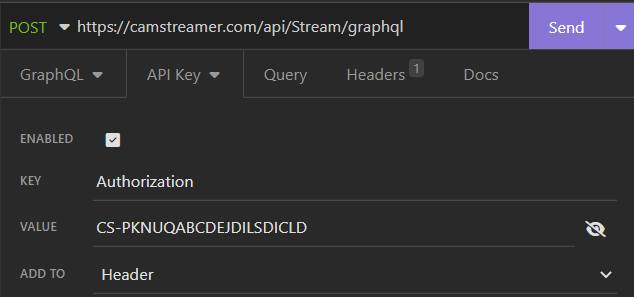
Query with serial number and license code (the same as in Authorization)
query {
GetStreamInfoList(
licenseCode: "CS-JYUHJDU6I3ABCDEFGHIJ",
serialNumber: "B8A44F0ABCDEF"
) {
streamId
title
streamType
description
platformType
cameraTimezone
startTime
stopTime
previewLink
resolution
}
}
Response with URL encoded permanent link:
{
"data": {
"GetStreamInfoList": [
{
"streamId": 36,
"title": "Title of one-time event",
"streamType": "onetime",
"description": "My description",
"platformType": "youtube",
"cameraTimezone": "Europe\/Berlin",
"startTime": 1677840720,
"stopTime": 1677844365,
"previewLink": "https%3A%2F%2Fcamstreamer.com%2Fredirect%2FyA8T7AyGg23PrXJNI9zqZDr"
}
]
}
}
Practical Examples
When you’re creating a new stream, use a different ID than the one created by the CamStreamer App. Our application uses whole numbers higher than 10. Use a prefix like “api_01”. A YouTube stream may be controlled via an API, but YouTube authorization first has to be carried out via a user interface.
In order for the camera to stream, the following conditions must be met: parameter enabled = 1, parameter active = 1 and parameter trigger = none or automation was active (input on or correct time interval)
Creation / modification of a new nonstop RTMP stream
PARAMETERS:
"enabled":"1",
"audioSource":"default",
"mediaServerUrl":"rtmp:\/\/a.rtmp.youtube.com\/live2\/rfp-test-2926.q9yk-3wv0-4zzg-78ks"
You can change a stream parameters by the set.cgi HTTP API call bellow.
http://IPADDR[:PORT]/local/camstreamer/stream/set.cgi?stream_id=STREAMID&enabled=1&audioSource=default&mediaServerUrl=rtmp://a.rtmp.youtube.com/live/rfp-test-2926.q9yk-3wv0-4zzg-78kswhere
IPADDR[:PORT] is an IP address:port of the camera. E.g. 192.168.1.5STREAMID is a stream identifier (string). A new stream is created if sent stream_id does not exist. If stream_id exists current stream is modified. For API are reserved identifiers with “api” prefix.
Stopping an RTMP stream
PARAMETERS:
"enabled":"0"You can stop a stream by the set.cgi HTTP API call bellow.
http://IPADDR[:PORT]/local/camstreamer/stream/set.cgi?stream_id=1057&enabled=0where
IPADDR[:PORT] is an IP address:port of the camera. E.g. 192.168.1.5STREAMID is a stream identifier (string). A new stream is created if sent stream_id does not exist. If stream_id exists current stream is modified. For API are reserved identifiers with “api” prefix.
Creation / modification of a new RTMP stream by pressing button 1
PARAMETERS:
"enabled":"1",
"audioSource":"default",
"trigger":"input0",
"mediaServerUrl":"rtmp:\/\/a.rtmp.youtube.com\/live2\/rfp-test-2926.q9yk-3wv0-4zzg-78ks"
Audio parameter:
– for microphone use “default”
– if the camera has no audio and you want to stream e.g. to YouTube where the audio is required, use this URL encoded value for audio “file:/usr/local/packages/camstreamer/tools/silence.mka”
You can create / modificate a stream by the set.cgi HTTP API call bellow.
http://IPADDR[:PORT]/local/camstreamer/stream/set.cgi?stream_id=1057&enabled=1&audioSource=default&trigger=input0&mediaServerUrl=rtmp%3A%2F%2Fa.rtmp.youtube.com%2Flive2%2Frfp-test-2926.q9yk-3wv0-4zzg-78kswhere
IPADDR[:PORT] is an IP address:port of the camera. E.g. 192.168.1.5STREAMID is a stream identifier (string). A new stream is created if sent stream_id does not exist. If stream_id exists current stream is modified. For API are reserved identifiers with “api” prefix.
Creation / modification of a new RTMP stream from 2019-03-04 11:10 to 2019-03-04 14:10 in UTC+01
"enabled":"1",
"audioSource":"default",
"trigger":"time",
"startTime":"1551694200",
"stopTime":"1551705000",
"mediaServerUrl":"rtmp:\/\/a.rtmp.youtube.com\/live2\/rfp-test-2926.q9yk-3wv0-4zzg-78ks"
You can create / modificate a stream by the set.cgi HTTP API call bellow.
http://IPADDR[:PORT]/local/camstreamer/stream/set.cgi?stream_id=1057&enabled=1&audioSource=default&trigger=time&startTime=1551694200&stopTime=1551705000&mediaServerUrl=rtmp%3A%2F%2Fa.rtmp.youtube.com%2Flive2%2Frfp-test-2926.q9yk-3wv0-4zzg-78kswhere
IPADDR[:PORT] is an IP address:port of the camera. E.g. 192.168.1.5STREAMID is a stream identifier (string). A new stream is created if sent stream_id does not exist. If stream_id exists current stream is modified. For API are reserved identifiers with “api” prefix.
CSt WebSocket API
Over the WebSocket connection, you can receive information about the statuses of streams.
Authorization
Get authorization token for WebSocket API. The token is valid only for 30 seconds or until the first connection.
Request:
http://USER:PASS@IPADDR[:PORT]/local/camstreamer/api/ws_authorization.cgiwhere
USER is a user name. E.g. rootPASS is a password. E.g. pass
IPADDR[:PORT] is an IP address:port of the camera. E.g. 192.168.1.5
Response:
{ "status": 200, "message": "YZWG1nBG7HtRc8Owy61P",}Connection to CSt WebSocket
You must use authorization as the first message. After successful authorization, the initialization data are sent. On authorization error, WebSocket is closed.
Used protocol (Sec-WebSocket-Protocol) is events
WebSocket address:
wss://IPADDR[:PORT]/local/camstreamer/eventswhere
IPADDR[:PORT] is an IP address:port of the camera. E.g. 192.168.1.5
Request:
{
"authorization": "80aXr8Vm0iFZl3Rlo2tR"
}
Response:
{
  "type": "authorization",
  "state": "OK"
}
To resend initialization data user request below.
Request:
{
  "command": "sendInitData"
}
Response:
{"type":"init","data":{"type":"StreamState","streamID":"117930","enabled":0,"active":1,"automationState":1,"isStreaming":0}}
{"type":"init","data":{"type":"PortChanged","port":0, "value":0}}
Type of CSt events
StreamState – attributes: type,streamID, enabled, active, automationState, isStreameing
{
"type": "StreamState",
"streamID": "117930",
"enabled": 0,
"active": 1,
"automationState": 1,
"isStreaming": 0
}
CS_API_SUCCESS – attributes: type, streamID, apiCall, message
{
"type": "CS_API_SUCCESS",
"streamID": "117930",
"apiCall": "startBroadcast",
"message": "Broadcast started."
}
PortChanged – attributes: type, port, value
{
"type": "init",
"data": {
"type": "PortChanged",
"port": 0,
"value": 0
}
}
CamOverlay App 3.x and 4.x
The CamOverlay App is an application running inside the camera on an Axis Camera Application Platform (ACAP). Below, you can find information about the application’s API. You can also check API examples directly in the application’s user interface under API Tips. Each graphic widget includes examples of the most common and useful API calls displayed at the top of its settings.

Please take into account that more than 4 active services per Video Channel can be in conflict with the Axis overlay. Also, to stay in the safe zone, a maximum of eight services running in all video channels is recommended. Also, be aware of the load of your camera if you are using a large number of animated services e.g., scrolling text in InfoTicker.
How overlays are assigned to outgoing streams:
Applications using SDK3/SDK4 (under FW 12.5) – Overlays are assigned to a selected position for a selected resolution. They are visible in all outgoing streams for the same video channel and are not scaled. They always remain in a fixed position. For multiple streams with or without widgets, create a new view area in the camera settings (not available for PTZ cameras).
Applications using SDK12 (FW 12.5 and higher) – Overlays are shown only in streams that match the configured resolution and video channel set for each graphics widget.
To display the same widget in multiple resolutions, you must create a separate widget for each resolution (copy the original widget and select the desired resolution).
Read more about API licensing here
Sample API requests to Postman and Insomnia can be downloaded here
CamOverlay Global Parameters
CamOverlay App functionality can be controlled using the API once the application is installed and licensed. There are several parameters described below. You can list all of them or just a single parameter by HTTP call:
http://IPADDR[:PORT]/axis-cgi/param.cgi?action=list&group=CamOverlay[.PARAMNAME]where
IPADDR[:PORT] is an IP address:port of the camera. E.g. 192.168.1.5PARAMNAME is a name of any parameter.
Any parameter can be changed using a HTTP call to the camera:
http://IPADDR[:PORT]/axis-cgi/param.cgi?action=update&CamOverlay.PARAMNAME=PARAMVALUEwhere
IPADDR[:PORT] is an IP address:port of the camera. E.g. 192.168.1.5PARAMNAME is a name of any parameter listed below.PARAMVALUE is a value you would like to save to CamOverlay App. Special characters in the value have to be urlencoded. See URL encoding
Parameter Enabled
Start or stop all overlays in cameras video stream. Valid values: 0, 1
Get and change the whole configuration of services
Overlay Object
Every overlay has to have six required parameters:
id is a unique identifying number of the overlay.enabled start or stop overlay in the video stream. Because of camera restriction only two overlays can be enabled at once!automationType set the way how the visibility of overlay is controlled. (See automation section)schedule is a schedule for enabling/disabling overlay.name is an overlay type. Valid values: images, customGraphics, ptzCompass, infoticker, screenSharing, pip, accuweathercameraList assigns graphics to selected Video Channels. Valid values: 0, 1, 2…
(until version 2.1.14 is used only by cameras with support for only one channel, versions 2.1.15 and higher are backward compatible with this parameter)
Get the configuration of services
Complete settings of overlay services in JSON format can be obtained with a GET call below. The base structure contains an array “services” with overlay objects.
http://USER:PASS@IPADDR[:PORT]/local/camoverlay/api/services.cgi?action=getwhere
USER is a user name. E.g. rootPASS is a password. E.g. passIPADDR[:PORT] is an IP address:port of the camera. E.g. 192.168.1.5
Example of what you get:
{
"services": [
{
"id": 1,
"enabled": 1,
"automationType": "manual",
"cameraList": [
0
],
"schedule": "",
"name": "infoticker",
"customName": "",
"showClock": 1,
"clockType": "24h",
"textColor": "0,0,0,1",
"bgColor": "255,255,255,1",
"weatherLocation": "",
"weatherLocationName": "",
"weatherLang": "en-us",
"weatherUnits": "Metric",
"numberOfLines": 1,
"switchingTime": 5,
"crawlLeft": false,
"crawlSpeed": 1,
"coordSystem": "bottom",
"pos_y": 0.05,
"width": 1920,
"height": 1080,
"zIndex": 0,
"font": "classic",
"fontSize": 40,
"sourceType": "text",
"source": "",
"chosen": false,
"selected": false
},
{
"id": 5,
"enabled": 1,
"automationType": "time",
"cameraList": [
0
],
"schedule": "",
"name": "images",
"customName": "",
"width": 1920,
"height": 1080,
"zIndex": 0,
"overlayList": [
{
"active": false,
"coordSystem": "top_left",
"pos_x": 10,
"pos_y": 10,
"imgPath": "",
"imgName": "",
"duration": 5,
"scale": 1
}
]
}
]
}
Set the configuration of services
If you want to update your service settings, you must use POST call:
http://USER:PASS@IPADDR[:PORT]/local/camoverlay/api/services.cgi?action=setwhere
USER is a user name. E.g. rootPASS is a password. E.g. passIPADDR[:PORT] is an IP address:port of the camera. E.g. 192.168.1.5.
GET request has a limit of 2048 characters (in Unicode). Updated information via the given HTTP requests is not saved persistently in the camera. Therefore, data is lost after a camera restart. In order to avoid the loss of information, it is necessary to update data on a regular basis or update the whole JSON CamOverlay App configuration via a POST request. (See section: Set the configuration of services)
Automation
Automation is set via attribute automationType and can have the following values:manual – control via the user interface of the app or HTTP request (below)schedule – displaying of overlays based on the week scheduleinputX – X is the number of camera input, input 1 is set with number 0 (zero-based)
InvertInput
Parameter invertInput inverts the logic of graphics activation based on the port state. Possible values:true – activates the graphics when the port state is 1false – activates the graphics when the port state is 0
HTTP request to display/hide the particular overlay
For example:
http://USER:PASS@IPADDR[:PORT]/local/camoverlay/api/enabled.cgi?SERVICE_ID=PARAMVALUE&SERVICE_ID=PARAMVALUEwhere
USER is a user name. E.g. rootPASS is a password. E.g. passIPADDR[:PORT] is an IP address:port of the camera. E.g. 192.168.1.5SERVICE_ID is an ID of the overlay service which you want to change and is written as id_X, X is the number of the service, id_X can be replaced with name_myservice, name_myservice=1 enables the service with name “myservice”PARAMVALUE shows or hides a particular overlay. Valid values: 0, 1
Updated information via the given HTTP requests is not saved persistently in the camera. Therefore, data is lost after a camera restart. In order to avoid the loss of information, it is necessary to update data on a regular basis or update the whole JSON CamOverlay App configuration via a POST request. (See section: Set the configuration of services)
Service parameters
Images Parameters
width is the width of the stream for which the overlay is set.height is the height of the stream for which the overlay is set.overlayList is an array of image objects. Every image object has parameters like position or duration (listed below).
Image Parameters
coordSystem is the start of the coordinate system from which the offset is computed. Valid values: top_left, top_right, bottom_left, bottom_right, left, right, top, bottom, centerpos_x is an offset in pixels in X axis direction in the video stream.pos_y is an offset in pixels in Y axis direction in the video stream.imgPath is a path to an image saved in the camera memory or an image url.imgName is an identifier of an image in the user interface.duration is the duration of an image appearing in the video stream.
Scripter Overlay Parameters
Scripter is a service for external scripts that can render images with Websocket API (see section below).
identifier is just for identification of the script that created this service.
API of services
Custom Graphics
It is possible to update texts in your text fields, switch between text variants, modify the position of graphics, and change the background image.
Updated information via the given HTTP requests is not saved persistently in the camera. Therefore, data is lost after a camera restart. In order to avoid the loss of information, it is necessary to update data on a regular basis or update the whole JSON CamOverlay App configuration via a POST request. (See section: Set the configuration of services)
Complete settings of service in JSON format can be obtained with GET call. (See section: Set the configuration of services)
Update text and text colors in text fields
Following request updates texts in text fields. Conditions:
a) use your names of fields as identification
b) variations of text fields are numbered from 0 in API (text1 has index 0)
For example:
http://USER:PASS@IPADDR[:PORT]/local/camoverlay/api/customGraphics.cgi?action=ACTION&service_id=SERVICE_ID&FIELD_NAME=YOUR_TEXT&FIELD_NAME_COLOR=FIELD_TEXT_COLOR[&FIELD_NAME=YOUR_TEXT]or
http://USER:PASS@IPADDR[:PORT]/local/camoverlay/api/customGraphics.cgi?action=ACTION&service_id=SERVICE_ID&FIELD_NAME_INDEX=FIELD_INDEX_NUMBERwhere
USER is a user name. E.g. rootPASS is a password. E.g. passIPADDR[:PORT] is an IP address:port of the camera. E.g. 192.168.1.5ACTION this parameter has two possible values, update_text or update_image.SERVICE_ID is an ID of the overlay service that you want to change, service_id can be replaced with service_name which uses a custom name filled in each serviceFIELD_NAME is an ID of a particular text field with default or changed name.YOUR_TEXT is your title.FIELD_NAME_COLOR is an ID of a particular text field color. E.g. field1_color.FIELD_TEXT_COLOR is a color defined as 255255255 or with an alpha channel as 255255255255.FIELD_NAME_INDEX is an ID of a particular text field variant. E.g. field1_index.FIELD_TEXT_NUMBER is a number of a particular text field variant. E.g. 0 for text1.
Modification of the background image
All parameters are optional except service_id and action
Update of the picture from your storage
curl -u USER:PASS -X POST --data-binary "@PATH_TO_THE_PICTURE" "http://IPADDR[:PORT]/local/camoverlay/api/customGraphics.cgi?action=update_image&service_id=SERVICE_ID"where
USER is a user name. E.g. rootPASS is a password. E.g. passIPADDR[:PORT] is an IP address:port of the camera. E.g. 192.168.1.5PATH_TO_THE_PICTURE the path to your picture in storage.SERVICE_ID is an ID of the overlay service that you want to change, service_id can be replaced with service_name which uses a custom name filled in each service
Update of the picture from camera storage
http://USER:PASS@IPADDR[:PORT]/local/camoverlay/api/customGraphics.cgi?action=update_image&service_id=SERVICE_ID&image=PATH_TO_THE_PICTUREUpdate of the picture position
You can combine pos_x, pos_y and coord_system
http://USER:PASS@IPADDR[:PORT]/local/camoverlay/api/customGraphics.cgi?action=update_image&service_id=SERVICE_ID&coord_system=COORDSYSTEM&pos_x=POSX&pos_y=POSYwhere
COORDSYSTEM is the start of the coordinate system from which the offset is computed. Valid values: top_left, top_right, bottom_left, bottom_right, left, right, top, bottom, centerPOSX is an offset in pixels in X axis direction in the video stream.POSY is an offset in pixels in Y axis direction in the video stream.
Info Ticker
In Info Ticker, text can be set into the video stream directly by HTTP API call.
HTTP API call for text change:
http://USER:PASS@IPADDR[:PORT]/local/camoverlay/api/infoticker.cgi?service_id=SERVICEID&text=YOUR_TEXTwhere
USER is a user name. E.g. rootPASS is a password . E.g. passIPADDR[:PORT] is an IP address:port of the camera. E.g. 192.168.1.5SERVICEID is an ID of the overlay service that you want to change.YOUR_TEXT is your title.
COv WebSocket API
Over the WebSocket connection, you can receive information about the status of services and about their turning on and off. WebSockets are available from version 2.1.7
Authorization
Get authorization token for WebSocket API. The token is valid only for 30 seconds or until the first connection.
Request:
http://USER:PASS@IPADDR[:PORT]/local/camoverlay/api/ws_authorization.cgiwhere
USER is a user name. E.g. rootPASS is a password. E.g. pass
IPADDR[:PORT] is an IP address:port of the camera. E.g. 192.168.1.5
Response:
{
  "status": 200,
  "message": "YZWG1nBG7HtRc8Owy61P",
}
Connection to the COv WebSocket
You must use authorization as the first message. After successful authorization, the initialization data are sent. On authorization error, the WebSocket is closed.
Used protocol (Sec-WebSocket-Protocol) is events
WebSocket address:
wss://IPADDR[:PORT]/local/camoverlay/service/wswhere
IPADDR[:PORT] is an IP address:port of the camera. E.g. 192.168.1.5
Request:
{
  "authorization": "80aXr8Vm0iFZl3Rlo2tR"
}
Response:
{
  "type": "authorization",
  "state": "OK"
}
To resend initialization data user request below.
Request:
{
  "command": "sendInitData"
}
Response:
{
  "type": "init",
  "data": {
    "type": "ServiceStart",
    "serviceId": 2
  }
}
Type of COv events
ServiceStart – attributes: type, serviceId
{"type":"ServiceStart","serviceId":2}ServiceStop – attributes: type, serviceId
{"type":"ServiceStop","serviceId":2}Realtime drawing API
There is a possibility to draw your own graphic directly in the camera using the CamOverlay WebSocket API. This technology is used, for example, by the CamScripter App for the custom integrations of other systems. The drawing API is based on the Cairo graphic library (https://cairographics.org/), expanded with some help functions and functions needed by the CamOverlay App. However, not all functions from the Cairo library are implemented. There is only a subset that will be extended in the future if it is required. All communication through WebSocket is done in JSON format. Client sends a command with call_id, and the response always contains the same ID for command identification.
For example we can create image by sending command:
{"call_id": 0, "command": "cairo_image_surface_create", "params": ["CAIRO_FORMAT_ARGB32", 200, 200]}Response:
{"var": "surface0", "call_id": 0}Variable name surface0 can be used for accessing this variable in other functions: cairo_create(cairo_surface_t *target). For simplification, it is recommended to use the CamStreamer node.js library created for the CamScripter App (here). There are also some more examples of usage.
Currently implemented Cairo functions
Image Surfaces
cairo_image_surface_create(cairo_format_t format, int width, int height)cairo_surface_write_to_png(cairo_surface_t *surface, const char *filename)cairo_surface_destroy(cairo_surface_t *surface)Paths
cairo_rectangle(cairo_t *cr, double x, double y, double width, double height)cairo_move_to(cairo_t *cr, double x, double y)cairo_line_to(cairo_t cr, double x, double y)cairo_new_sub_path(cairo_t cr)cairo_close_path()cairo_arc(cairo_t *cr, double xc, double yc, double radius, double angle1, double angle2)Cairo
cairo_create(cairo_surface_t *target)cairo_destroy(cairo_t *cr)cairo_save(cairo_t *cr)cairo_restore(cairo_t *cr)cairo_set_source_rgb(cairo_t *cr, double red, double green, double blue)cairo_set_source_rgba(cairo_t *cr, double red, double green, double blue, double alpha)cairo_fill(cairo_t *cr)cairo_stroke(cairo_t *cr)cairo_set_line_width(cairo_t *cr, double width)cairo_surface_flush(cairo_surface_t *surface)cairo_set_source_surface(cairo_t *cr, cairo_surface_t *surface, double x, double y)cairo_paint(cairo_t *cr)cairo_clip(cairo_t *cr)cairo_reset_clip(cairo_t *cr)Transformations
cairo_translate(cairo_t *cr, double tx, double ty)cairo_scale(cairo_t *cr, double sx, double sy)cairo_rotate(cairo_t *cr, double angle)cairo_set_matrix(cairo_t *cr, const cairo_matrix_t *matrix)cairo_get_matrix(cairo_t *cr, cairo_matrix_t *matrix)cairo_identity_matrix(cairo_t *cr)Text
cairo_show_text(cairo_t *cr, const char *utf8)cairo_set_font_size(cairo_t *cr, double size)cairo_text_extents(cairo_t *cr, const char *utf8, cairo_text_extents_t *extents)cairo_set_font_face(cairo_t *cr, cairo_font_face_t *font_face)Font
cairo_font_face_destroy(cairo_font_face_t *font_face)Extended functions
write_text(cairo_t *cr, const char * text, const int x, const int y, const int width, const int height, const char *align, const char *textFitMethod)Write text to box on position x, y, width, height [px]. Align should be one of the values: A_LEFT, A_RIGHT, A_CENTER.
TextFitMethod options:
TFM_SCALE – Text size is adjusted to the width and height of the box.
TFM_TRUNCATE – Text size truncated to the width of the box.
TFM_OVERFLOW – Text overflows the box.
upload_image_data(const char * base64)Upload an image to the CamOverlay App and return the variable name and dimensions of that image.
upload_font_data(const char * base64)Upload font to the CamOverlay App and return variable name.
matrix_destroy(cairo_matrix_t *matrix)Release allocated memory for the matrix.
show_cairo_image_v2(cairo_surface_t *surface, const double x, const double y, const int * cameraList, const int zIndex)Show image in CamOverlay App on positions x, y. The positions in coordinates -1.0,-1.0 (upper left) / 1.0,1.0 (bottom right). The image is shown in all video channels specified by cameraList with the given zIndex.
Deprecated:
remove_image(const int serviceID)Remove the image in the CamOverlay App service with the given ID.
CamSwitcher App 2.x API
The CamSwitcher App is an application running inside the camera on an Axis Camera Application Platform (ACAP). It offers the possibility to switch between up to five AXIS network cameras, including video clips saved on the camera’s SD card, while also supporting live stream commentary and mixing two audio sources together. Below, you can find information about the application’s API. You can also check API examples directly in the application’s user interface under API Tips.
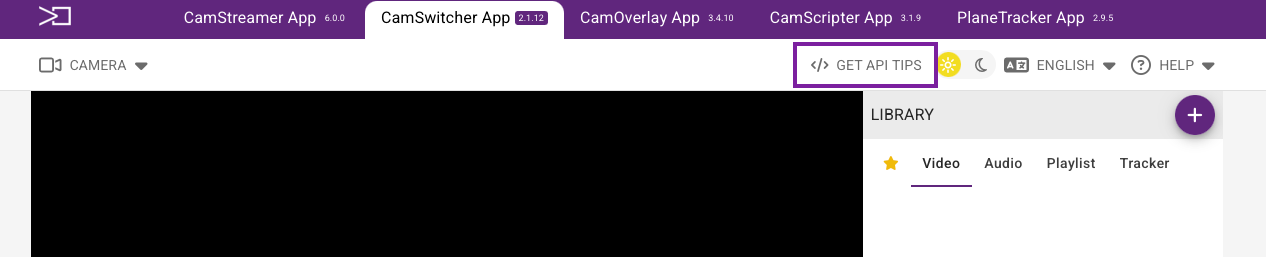
The process of switching between Live Views can be performed manually, automatically via predefined playlists, or programmed via API commands. Simply choose your master audio and generate a single output video stream in real-time.
The CamSwitcher App must be installed on a camera with an ARTPEC-6 processor or higher (see compatibility). The rest of the cameras used as additional video and audio sources require at least an ARTPEC-5 chipset with the main H.264 profile (see chipset). You’ll also need a CamStreamer App to stream your video on a streaming platform of your choice.
The port used in HTTP requests is the HTTP port of the camera, which is 80 by default. If it is not changed, you do not need to specify it.
Read more about API licensing here
Sample API requests to Postman or Insomnia can be downloaded here
Get the RTSP link of the video stream
The video access expires after 5 min and you can use it only once. If you need a persistent RTSP link, generate it via the UI in the General Settings.
http://IPADDR[:PORT]/local/camswitcher/output_info.cgiwhere
IPADDR[:PORT]192.168.1.5:80
Response example:
{
"status": 200,
"message": "OK",
"data": {
"rtsp_url": "rtsp://127.0.0.1:1554/6da0c033531ad459e64cd9847e6c994014f4ef29afe3f46afeab82a222805200",
"ws": "ws://127.0.0.1/local/camswitcher/video",
"ws_initial_message": "{\"type\":\"ALIAS_NAME\", \"data\": \"6da0c033531ad459e64cd9847e6c994014f4ef29afe3f46afeab82a222805200\"}"
}
}
To play the video, replace the localhost IP address with the real IP address of the camera.
Get the list of available playlists
Note that for the CamSwitcher App, each playable object is considered a playlist. It could be a camera with audio, a video clip with audio, a playlist that contains more video clips, and cameras with audio.
Example:
http://IPADDR[:PORT]/local/camswitcher/react/local/camswitcher/api/playlists.cgi?action=getwhere
IPADDR[:PORT] is an IP address:port of the camera. E.g. 192.168.1.5
Response example:
{
  "status": 200,
  "message": "OK",
  "data": {
    "s4776be33-bcca-45a3-912b-e2840c6c06de": {
      "niceName": "Video_clip",
      "loop": false,
      "isFavourite": false,
      "stream_list": [{
        "id": "78b12cf8-4d91-4e2c-a444-92e14543b8be",
        "timeout": 0,
        "repeat": 1,
        "isTimeoutCustom": false,
        "video": {
          "clip_name": "s4776be33-bcca-45a3-912b-e2840c6c06de"
        },
        "audio": {
          "clip_name": "s4776be33-bcca-45a3-912b-e2840c6c06de"
        }
      }],
      "keyboard": {},
      "channel": "av"
    },
    "cdb04b0cb-0c7b-4292-aa0f-7920eb73333e": {
      "niceName": "V5925 - B8A44F009C1F",
      "loop": false,
      "isFavourite": false,
      "stream_list": [{
        "id": "dfe22a89-7e8d-40b2-a59c-f25c6226efb0",
        "timeout": 0,
        "repeat": 1,
        "isTimeoutCustom": false,
        "video": {
          "stream_name": "cdb04b0cb-0c7b-4292-aa0f-7920eb73333e"
        },
        "audio": {
          "clip_name": "sd2b03f67-31c7-40b2-99c1-5079dd0dab65"
        }
      }],
      "keyboard": {},
      "channel": "av"
    }
  }
}
The name of the playlist is the first chain placed before the niceName parameter. Name of the playlist for camera V5925 is cdb04b0cb-0c7b-4292-aa0f-7920eb73333e.
Camera playlists have always prefix “c”, and true playlists always have a prefix “p”.
Examples:
Camera playlist: c2585a341-2677-4d0f-864e- 63055fe17b6b
True playlist: pbb1289ed-15e3-4487-a2d6- fecc80f9a4c0
Start a particular playlist
Use the playlist name from the previous example of how to get a list of playlists.
Example:
http://IPADDR[:PORT]/local/camswitcher/react/local/camswitcher/api/playlist_switch.cgi?playlist_name=PLAYLISTNAMEwhere
IPADDR[:PORT] is an IP address:port of the camera. E.g. 192.168.1.5
PLAYLISTNAME is the name of a particular playlist which contains a combination of audio and video, e.g. cdb04b0cb-0c7b-4292-aa0f-7920eb73333e
Get the list of playlists in the queue
Via the request below, you can list playlist names waiting in the queue to be played.
Example:
http://IPADDR[:PORT]/local/camswitcher/react/local/camswitcher/api/playlist_queue_list.cgiwhere
IPADDR[:PORT] is an IP address:port of the camera. E.g. 192.168.1.5
Push a particular playlist to the queue
Push a particular playlist from the current queue.
http://IPADDR[:PORT]/local/camswitcher/react/local/camswitcher/api/playlist_queue_push.cgi?playlist_name=PLAYLISTNAMEwhere
IPADDR[:PORT] is an IP address:port of the camera. E.g. 192.168.1.5
PLAYLISTNAME is the name of a particular playlist which contains a combination of audio and video, e.g. cdb04b0cb-0c7b-4292-aa0f-7920eb73333e
Play the next playlist from the queue
Play the next playlist from the current queue.
Example:
http://IPADDR[:PORT]/local/camswitcher/react/local/camswitcher/api/playlist_queue_play_next.cgiwhere
IPADDR[:PORT] is an IP address:port of the camera. E.g. 192.168.1.5
Clear the playlist queue
Clear the current playlist queue
Example:
http://IPADDR[:PORT]/local/camswitcher/react/local/camswitcher/api/playlist_queue_clear.cgiSwitch playlist immediately
Switch playlist immediately. Same as a sequence: playlist_queue_clear.cgi, playlist_queue_push.cgi, playlist_queue_play_next.cgi
Example:
http://IPADDR[:PORT]/local/camswitcher/react/local/camswitcher/api/playlist_switch.cgi?playlist_name=PLAYLISTNAMEwhere
IPADDR[:PORT] is an IP address:port of the camera. E.g. 192.168.1.5
PLAYLISTNAME is the name of a particular playlist which contains a combination of audio and video, e.g. cdb04b0cb-0c7b-4292-aa0f-7920eb73333e
Get the list of available clips
Reading of available clips can be useful e.g. when you want to switch master audio and need to know the clip name.
http://IPADDR[:PORT]/local/camswitcher/react/local/camswitcher/api/clips.cgi?action=getwhere
IPADDR[:PORT] is an IP address:port of the camera. E.g. 192.168.1.5
Change master audio output
Via the requests below, you can change the master audio output.
Configuration of master audio:
{
  "master_audio": {
    "type": "NONE",
    "stream_name": "",
    "clip_name": ""
  }
}
- type (string)
*– type of master audio (NONE/SILENCE/STREAM/CLIP) - stream_name (string) – stream identifier for type =
STREAM - clip_name (string) – clip identifier for type
Example of master audio change to clip:
http://IPADDR[:PORT]/axis-cgi/param.cgi?action=update&camswitcher.masterAudio={"type":"CLIP","clip_name":"CLIPNAME"}Example of master audio change to stream:
http://IPADDR[:PORT]/axis-cgi/param.cgi?action=update&camswitcher.masterAudio={"type":"STREAM","stream_name":"STREAMNAME"}Example of master audio change to respect audio of playing source:
http://IPADDR[:PORT]/axis-cgi/param.cgi?action=update&camswitcher.masterAudio={"type":"NONE"}Example of master audio change to silence:
http://IPADDR[:PORT]/axis-cgi/param.cgi?action=update&camswitcher.masterAudio={"type":"SILENCE"}Example of how to get the currently set master audio:
http://IPADDR[:PORT]/axis-cgi/param.cgi?action=list&group=camswitcher.masterAudiowhere
IPADDR[:PORT] is an IP address:port of the camera. E.g. 192.168.1.5
CSw WebSocket API
Over the WebSocket connection, you can receive information about events within the CamSwitcher App and stream availability.
Authorization
Get an authorization token for the WebSocket API. The token is valid only for 30 seconds or until the first connection.
Request:
http://USER:PASS@IPADDR[:PORT]/local/camswitcher/api/ws_authorization.cgiwhere
USER is a user name. E.g. rootPASS is a password. E.g. pass
IPADDR[:PORT] is an IP address:port of the camera. E.g. 192.168.1.5
Response:
{ "status": 200, "message": "YZWG1nBG7HtRc8Owy61P",}Connection to WebSocket
You must use authorization as the first message. After successful authorization, the initialization data are sent. On authorization error, the WebSocket is closed.
Used protocol (Sec-WebSocket-Protocol) is events
WebSocket address:
wss://IPADDR[:PORT]/local/camswitcher/eventswhere
IPADDR[:PORT] is an IP address:port of the camera. E.g. 192.168.1.5
Request:
{
"authorization": "80aXr8Vm0iFZl3Rlo2tR"
}
Response:
{
  "type": "authorization",
  "state": "OK"
}
To resend the initialization data user request below.
Request:
{
  "command": "sendInitData"
}
Response:
{"type":"init","data":{"type":"SwitcherStart","default_playlist_id":"c26b737ea-1178-4f9e-851c-479cbdd6e97d"}}
14:29:19
{"type":"init","data":{"playlist_active_stream":0,"stream_name":"c4f673956-99c5-4a92-8854-c369d1f7da27","playlist_name":"c4f673956-99c5-4a92-8854-c369d1f7da27","type":"StreamSwitchVideo"}}
14:29:19
{"type":"init","data":{"playlist_active_stream":0,"stream_name":"c4f673956-99c5-4a92-8854-c369d1f7da27","playlist_name":"c4f673956-99c5-4a92-8854-c369d1f7da27","type":"StreamSwitchAudio"}}
14:29:19
{"type":"init","data":{"type":"StreamAvailable","stream_name":"c4f673956-99c5-4a92-8854-c369d1f7da27","state":true}}
14:29:19
{"type":"init","data":{"type":"StreamAvailable","stream_name":"c26b737ea-1178-4f9e-851c-479cbdd6e97d","state":true}}
Change the PTZ position of the camera
For PTZ changes, use the AXIS API directly.
Example:
http://IPADDR[:PORT]/axis-cgi/com/ptz.cgi?camera=CAMERAID&gotoserverpresetname=PTZNAMEwhere
IPADDR[:PORT] is an IP address:port of the camera. E.g. 192.168.1.5
CAMERAID is an ID of a View Area of your camera. For real PTZ cameras, use the value 1
PTZNAME is the name of your PTZ position and is case sensitive
CamScripter App 2.x API
The CamScripter App is an application running inside the camera on an Axis Camera Application Platform (ACAP) and can automate all CamStreamer applications. Below, you can find information about the application’s API.
The CamScripter App functionality can be controlled using the API once the application is installed and licensed.
NOTICE
Read here how to create your own micro application for the CamScripter App.
Documentation of our library and examples of the app can be found on our GitHub.
Read more about API licensing here
Sample API requests to Postman and Insomnia can be downloaded here
Package format of micro-app for the CamScripter App
The CamScripter package is a .zip file containing all the manifest, Node.js scripts, and static files for UI (images, frontend JS, CSS,…).
File manifest.json
The manifest.json is required in each package. The file contains a json object with the following attributes:
package_name, package_menu_name, package_version, vendor, required_camscripter_version, ui_link is link to UI (optional)
Main script
The main.js is required in each package. This is the Node.js script that is started once the package starts.
Environment variables
Each micro application running in the CamScripter App environment has access to the following variables:
HTTP_PORT see chapter HTTP ProxyHTTP_PORT_PUBLIC proxy without authorization. See chapter HTTP ProxyINSTALL_PATHPERSISTENT_DATA_PATH folder, which is suitable for permanent data. All data persists after a restart of the camera or a package upgrade.PACKAGE_NAME
Libs
All required JS libraries should be part of the package.
Package configuration
The PackageConfigurations parameter is used to enable or disable packages. Value is in JSON format.
Example:
{"package_name":{"enabled": true}}Install package
Basic cURL usage:
curl --user USER:PASS -F file=PACKAGE_NAME http://IPADDR[:PORT]/local/camscripter/package/install.cgiwhere
USER is a user name. E.g. rootPASS is a password. E.g. passIPADDR[:PORT] is an IP address:port of the camera. E.g. 192.168.1.5PACKAGE_NAME is the name of the package on your computer. E.g. clock.zip
Example:
curl --user root:pass -F [email protected] http://127.0.0.1:52520/local/camscripter/package/install.cgiRemove package
http://IPADDR[:PORT]/local/camscripter/package/remove.cgi?package_name=PACKAGE_NAMEwhere
IPADDR[:PORT]192.168.1.5PACKAGE_NAME
http://127.0.0.1:52520/local/camscripter/package/remove.cgi?package_name=clockList all installed packages
http://IPADDR[:PORT]/local/camscripter/package/list.cgiwhere
IPADDR[:PORT]192.168.1.5
Response example of list action in JSON format:
[{
  "package_name": "doorController",
  "package_menu_name": "Door Controller",
  "package_version": "1.1.1",
  "vendor": "Camstreamer s.r.o.",
  "required_camscripter_version": "1.2.3",
  "ui_link": "/local/camscripter/package/doorController/index.html"
}, {
  "package_name": "clockAnalog",
  "package_menu_name": "Analog Clock",
  "package_version": "1.0.1",
  "vendor": "Camstreamer s.r.o.",
  "required_camscripter_version": "1.2.3",
  "ui_link": "/local/camscripter/package/clockAnalog/index.html"
}]
Set or get settings for application
This is usually used from the package UI. Settings should be in JSON format. JSON is stored in /package_name/localData/settings.json and is preserved while the package upgrades. The SIGINT signal is sent to the package if new settings are made.
http://IPADDR[:PORT]/local/camscripter/package/settings.cgiwhere
IPADDR[:PORT] is an IP address:port of the camera. E.g. 192.168.1.5
Parameters:
PACKAGE_NAME is the name of the package.ACTION specify action ( set / get ).
HTTP Proxy
Use the HTTP proxy if the package needs an API. The CamScripter App forwards any http(s) request coming to the default HTTP server on the camera as http(s)://IPADDR[:PORT]/local/camscripter/proxy/PACKAGE_NAME/* to http(s)://127.0.0.1:PORT2/* The PORT2 is a unique number defined as an environment variable. The default HTTP server on the camera requires HTTP authorization (basic or digest).
where
IPADDR[:PORT] is an IP address:port of the camera. E.g. 192.168.1.5PACKAGE_NAME is the name of the package. E.g. clock
Redirected to package http port.
http://IPADDR[:PORT]/local/camscripter/proxy/PACKAGE_NAME/*Example:
http://192.168.1.5/local/camscripter/proxy/clock/test.cgiRedirected to package http public port.
http://IPADDR[:PORT]/local/camscripter/proxy_public/PACKAGE_NAME/*proxy.cgi
Any HTTP(S) request is forwarded to the target camera. You can use it for any VAPIX command.
HINT
The proxy implementation allows you to have a fully functional user interface even if you access the camera of the device with the script from a non-local IP address.
HTTP command:
http://IPADDR[:PORT]/local/camscripter/proxy.cgiwhereIPADDR[:PORT] is an IP address:port of the camera. E.g. 192.168.1.5:80
Headers of the HTTP command:
- x-target-camera-protocol – target camera protocol:
http/https/https_insecure - x-target-camera-ip – target camera IP address
- x-target-camera-port– target camera port
- x-target-camera-path – target camera path
- x-target-camera-user – target camera username
- x-target-camera-pass – target camera password
Example:
HTTP VAPIX request for view areas on set camera.
http://IPADDR[:PORT]/axis-cgi/param.cgi?action=list&group=root.Image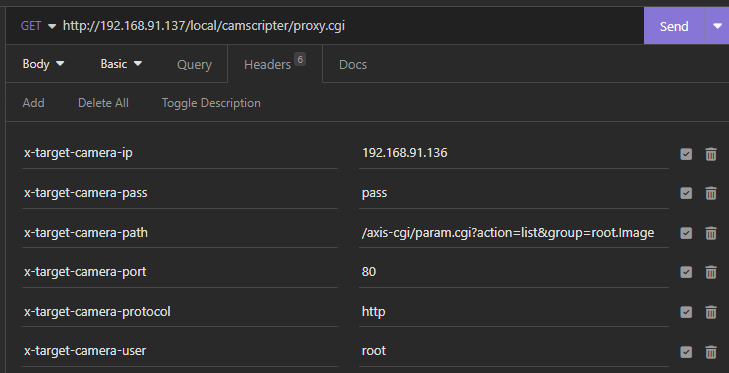
Access to static html
Access to path /package_name/html/
http://IPADDR[:PORT]/local/camscripter/package/PACKAGE_NAME/*where
IPADDR[:PORT] is an IP address:port of the camera. E.g. 192.168.1.5PACKAGE_NAME is the name of the package. E.g. clock
Search for cameras on the local network
With this endpoint, you can scan the local network, display the available cameras to the user, and let the user select a camera via the user interface and automatically fill in the desired IP address. The solution uses the mDNS protocol and mDNS camera names.
/network_camera_list.cgi
{
  "camera_list": [{
    "name": "AXIS A8207-VE - ACCC8EBFD3E5",
    "ip": "192.168.91.211"
  }, {
    "name": "AXIS Demographic Identifier - AXIS Q3515 - ACCC8EBE6D6F",
    "ip": "192.168.91.208"
  }]
}
NDI HX Plugin 1.x API
The Plugin utilizes the NDI® HX2 protocol to display the camera in the network, livestream both in HQ and LQ, and control the tally light as well as PTZ positions.
Sample API requests to Postman and Insomnia can be downloaded here
How to get and change the whole configuration of the application
The application has eight parameters.
ndiName This is the name of the NDI source to create. It is a NULL-terminated UTF-8 string. This will be the name of the NDI source on the network. For instance, if your network machine name is called “MyMachine” and you specify this parameter as “My Video”, the NDI source on the network would be “MyMachine (My Video)”.ndiGroups This parameter represents the groups that this NDI sender should place itself into. Groups are sets of NDI sources. Any source can be part of any number of groups, and groups are comma-separated. For instance, “cameras, studio 1,10am show” would place a source in the three groups named. On the finding side, you can specify which groups to look for and look in multiple groups. If the group is NULL, then the system default groups will be used.channel number of the camera channel (View Area or Sensor), starting from number 1width is the width of the required videoheight is the height of the required videofps is the number of frames per secondgop number of frames after which is the key frame is sentaudioEnabled parameter to turn audio off and on
Get configuration
Complete settings of the application in JSON format can be obtained with a GET call below.
http://USER:PASS@IPADDR[:PORT]/local/ndihxplugin/settings.cgi?action=getwhere
USER is a user name. E.g. rootPASS is a password. E.g. passIPADDR[:PORT] is an IP address:port of the camera. E.g. 192.168.1.5
Example of what you get:
{
"ndiName": "P1375",
"ndiGroups": "",
"channel": 2,
"width": 1920,
"height": 1080,
"fps": 50,
"gop": 101,
"audioEnabled": false
}
Set the configuration
If you want to update your settings, you must use POST call.
http://USER:PASS@IPADDR[:PORT]/local/ndihxplugin/settings.cgi?action=setwhere
USER is a user name. E.g. rootPASS is a password. E.g. passIPADDR[:PORT] is an IP address:port of the camera. E.g. 192.168.1.5
Licensing options
This article explains how to activate the NDI HX Plugin license on an Axis camera. Depending on your network setup, the license can be activated either automatically in an online environment or manually using a key file for offline environments. The following sections describe both methods and guide you through the steps required to successfully license the plugin.
Activate license using a key
This method is intended for offline environments. To generate the license key file, visit this Axis website. You must have an Axis account to proceed.
On the Axis website, fill out the required form to generate the key file.
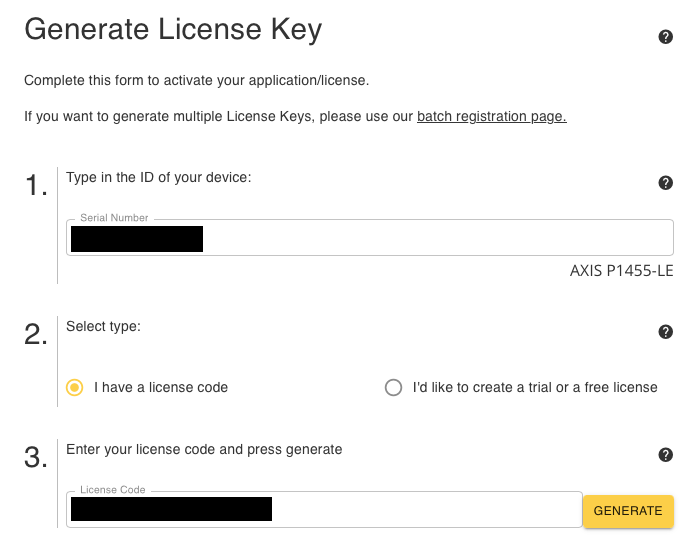
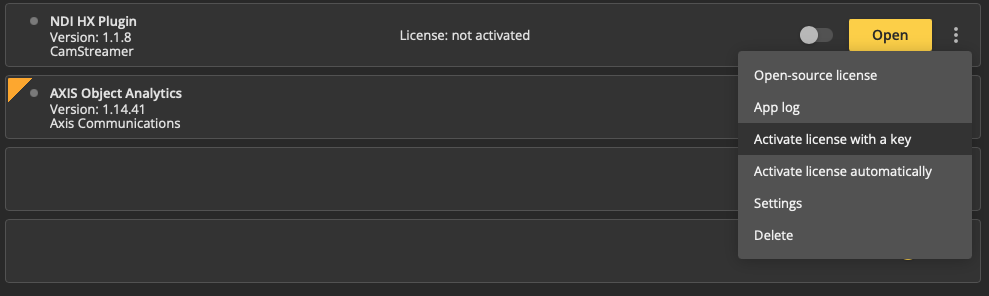
Once the key file has been generated, download it and upload it to the camera. In the camera interface, navigate to Apps, click the Options menu (three dots) next to the NDI HX Plugin app, and select Activate license with a key.
Finally, upload the key file to complete the camera licensing process.
Activate license automatically
To license the app in an online environment, open the camera interface and navigate to Apps. Click the Options menu (three dots) next to the NDI HX Plugin app and select Activate license automatically.
In the modal window that appears, enter the license key and confirm to activate the plugin.
Offline ACAP Licensing
This licensing method is used for cameras in offline environments.
Installing the app
Before activating the license, you have to install the appropriate ACAP application on your camera. You can download the required installation package from here. The installation can be done manually in the “apps” section in the Axis camera user interface, via VAPIX API, or through Axis Device Manager.
In-app offline licensing
For easier API request creation or smaller deployments, use the integrated Offline Licensing Wizard located in the Help section (top-right corner) of your application.
Note: For the CamStreamer app, this feature is limited to versions 4.x.x and 6.x.x.
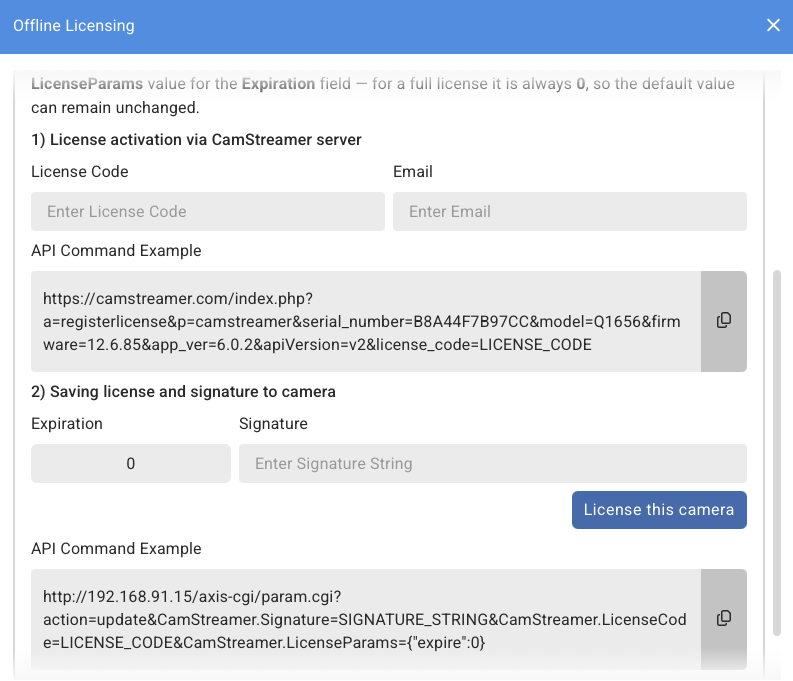
1. License activation on the CamStreamer server
First, activate the license on the CamStreamer server.
- Fill out the License Code and Email
- Copy the API Command and paste it into a new browser window (PC must be online)
- Copy the Signature and expiration
2. Save the signature and expiration time to the camera
In CamStreamer offline licensing wizard:
- Fill out the Expiration and signature parameters (acquired from our server response)
- Click License this camera, or paste the API command into a new browser window.
Generating a signature for the camera on our server
Send the camera information and assign an unused license code to your camera on our server. A trial license or a full license can be obtained via our web page.
The license can be activated via a GET request below, on a computer with internet access.
https://camstreamer.com/license-api/v2/activate?serial_number=SERIAL_NUMBER&app_name=APP_NAME&license_code=LICENSE_CODE&email=EMAILwhere
SERIAL_NUMBER is the serial number of the camera you assign the license to. E.g. B8A44F7XXXXAPP_NAME is the name of the application you want to activate. Our application names in API are: camstreamer, camoverlay, camscripter, camswitcher, planetrackerLICENSE_CODE is the license code you want to assign to the camera serial number. E.g. CS-R4U4KXXXXXXXXXEMAIL is the email you want the camera and license to register to
Server response
After successfully sending camera and license information to our server, you should get a response in this format:
{
    "code": 200,
    "message": "OK",
    "Expire": 0,
    "Signature": "75fe128adb855e365925d1b19c5024897048145779994239462e8334dbfcc8cb",
    "LicenseCode": "CS-R4U4KXXXXXXXXX",
    "LicenseParams": "{\"expire\":0}"
}
where
code response code from the servermessage is a status message indicating error sources (if there are any)Expire is the expiration date of the license, for full licenses value is always 0Signature is a unique hash calculated on our serverLicenseParams is an object with the parameters of the license used for license validation
Errors
{
  "code": "ERR_INVALID_ARGUMENT",
  "message": "Invalid email address given 'not-valid-address.com'."
}
{
"code": "ERR_FAILED_TO_ACTIVATE",
"message": "This camera already has an unlimited license."
}{
"code": "ERR_FAILED_TO_ACTIVATE",
"message": "This license code has already been used."
}Get the signature for already licensed camera
If your camera already has a license assigned on our server, or you get the error message "This camera already has an unlimited license." you can get the signature and LicenseParams using the following GET request.
https://camstreamer.com/index.php?a=checklicense&p=APP_NAME&serial_number=SERIAL_NUMBER&model=CAMERA_MODEL&firmware=FW_VERSION&app_ver=APP_VERSION&apiVersion=v2where
SERIAL_NUMBER is the serial number of the camera you assign the license to. E.g. B8A44F7XXXXAPP_NAME is the name of the application you want to activate. Our application names in API are: camstreamer, camoverlay, camscripter, camswitcher, planetrackerCAMERA_MODEL is the camera model. E.g. P3265-LVEFW_VERSION is the firmware version installed on the camera. E.g. 12.6.85APP_VERSION is the application version you want to get the signature for. E.g. 6.0.0apiVersion is the licensing API version that is currently in use
NOTICE
All parameters stated above are required.
Server response
{
  "code": 200,
  "message": "OK",
  "data": {
    "Expire": 0,
    "Signature": "75fe128adb855e365925d1b19c5024897048145779994239462e8334dbfcc8cb",
    "LicenseCode": "CS-R4U44***************",
    "LicenseParams": "{\"expire\":0}",
    "LicenseType": "full",
    "Activated": 1771577985,
    "CurrentTime": 1771580148,
    "TrialAvailable": true,
    "LatestACAPVersion": "4.1.3"
  }
}
where
code response code from the servermessage is a status message indicating error sources (if there are any)Expire is the expiration date of the license, for full licenses, the value is always 0Signature is a unique hash calculated on our serverLicenseCode is the license code used for this camera and applicationLicenseParams is an object with the parameters of the license used for license validationLicenseType is the type of licenseActivated is the timestamp the license has been activatedCurrentTime is the current time of the serverTrialAvailable is a boolean value indicating if the camera has a 30-day trial available.LatestACAPVersion is the latest application version available for your camera and firmware.
Errors
One or more required parameters are missing or invalid.
{
	"code": 400,
	"message": "Invalid required parameter"
}
The camera with this Serial Number is not licensed on our servers for this application.
{
	"code": 489,
	"message": "Camera is not licensed",
	"data": {
		"CurrentTime": 1771593266,
		"TrialAvailable": true
	}
}
The application name is incorrect or misspelled.
404 NOT FOUNDSaving the signature to the camera
After successfully obtaining the response, you have to load app_parameters to the camera using a device in the offline environment. Note that before the name of the parameter, you have to put “APP_NAME.” See the example below:
http://USER:PASS@IPADDR[:PORT]/axis-cgi/param.cgi?action=update&APP_NAME.Signature=SIGNATURE_STRING&APP_NAME.licenseparams=LICENSE_PARAMS&APP_NAME.LicenseCode=LICENSE_CODEwhere
USER is the camera Axis camera user name. E.g. rootPASS is the password for the Axis camera user. E.g. passIPADDR[:PORT] is an IP address:port of the camera. E.g. 192.168.1.5APP_NAME is the name of the application you want to activate. Our application names in API are: camstreamer, camoverlay, camscripter, camswitcher, planetrackerSIGNATURE_STRING string with the signature from the first response from Generating a signature for the camera on our server sectionLICENSE_PARAMS is the object with values obtained from the server request. Input values without backslashes (\). E.g. {"expire":0}LICENSE_CODE your license code used in the first request from the first server response
Example:
http://root:[email protected]:80/axis-cgi/param.cgi?action=update&camstreamer.Signature=75fe128adb855e365925d1b19c5024897048145779994239462e8334dbfcc8cb&camstreamer.licenseparams={"expire":0}&camstreamer.LicenseCode=CS-R4U4KXXXXXXXXXNOTICE
The APP_NAME.LicenseCode parameter (used in the 2nd request) is stored in the camera during licensing only for CamStreamer App and PlaneTracker App. Do not include this parameter in the 2nd request for other ACAP applications.